
How to Upload Documents to MyService
MyService is where you lodge DVA claims and attach the evidence they are decided on. You can upload documents while you are making a claim, or add them afterwards from the Claims tile. Accepted formats are PDF, JPG and PNG, up to 50 MB per file. Here is the whole process, and what to upload so your claim is not sent back for more.
- Sign in (via myGov): https://my.gov.au
- MyService help: https://www.dva.gov.au/about-myservice
- DVA video walkthrough: youtube.com/watch?v=UcMW2R5Vc8k
- Phone: 1800 VETERAN (1800 838 372)
At a glance
- File typesPDF, JPG, PNG
- Max size50 MB
- AccessVia myGov
- After lodging?Yes — anytime
How do I upload documents to MyService?
Sign in to MyService through myGov. If you are part-way through a claim, the Add documents screen appears during the claim and you select Upload to choose a file. If the claim is already lodged, go to your home page, select the Claims tile, find the claim in Claims underway, and select Add documents, then Upload. Use Add another for extra files and Remove to delete one, then select Submit. Accepted file types are PDF, JPG and PNG, with a maximum of 50 MB per file.
Where the upload button lives
Whether you are mid-claim or already lodged, you end up at the same Upload button. Only the way in differs.
Getting into MyService
MyService is reached through myGov, not as a separate login.
If you are an existing DVA client: sign in to myGov, select View and link services, select Link next to the Department of Veterans’ Affairs, and enter an activation code with your date of birth. You can get a code by calling 1800 VETERAN (1800 838 372) or visiting a Veterans’ Access Network location or Services Australia service centre.
If you are new to DVA: same path, but select Register now, choose your status (still serving, no longer serving, never served), and enter your PMKeyS number, service number or DVA client number along with proof-of-identity details. Your details must match your identity documents exactly. The activation code arrives by email within 24 hours.
On the myGov app, go to Services, select the Link icon (Android) or + (Apple), choose Department of Veterans’ Affairs and follow the prompts.
DVA and myGov will never send you an email or SMS containing a link to sign in. If you get one, it is a scam — type my.gov.au into your browser yourself.
Uploading during a claim
When you lodge an Initial Liability claim, MyService walks you through diagnosis, medical practitioner details, and then evidence. At the evidence stage:
- The Add documents screen lists examples of the sort of document DVA wants for your particular diagnosis, with an Upload button.
- Select Upload and choose the file. On a computer that is a file from your device; on a phone or tablet you can choose from your files or your photos.
- Select Add another for each additional document. Remove deletes one you picked by mistake.
- Continue through service history — if DVA does not already have your service details you will be prompted, and you should upload your service record documents if you have them.
- At the “how the condition happened” stage, upload anything supporting it: incident reports, Authority to Participate in Civilian Sport, Hazardous Material Exposure Reports, training programs and itineraries.
You can submit a claim with no documents at all. DVA will accept it and then contact you asking for them, and the claim will take considerably longer. There is no advantage in lodging empty.
One condition per claim. MyService only accepts a single condition per Initial Liability claim, so ten conditions means ten claims — and ten sets of evidence to attach.
Uploading after you have lodged
Nothing is lost if you have already submitted. You can add documents to any claim right up until it is determined.
- From your MyService home page, select the Claims tile.
- In the Claims underway list, find the claim for the relevant condition. If DVA has identified missing documents, it will show a status of Awaiting your information and you will have a Required documents task.
- Select Add documents, then Upload.
- Add another for further files; Remove to delete.
- Select Submit.
You do not have to wait for a Required documents task. If you have something useful, add it — the sooner DVA has it, the sooner the claim can be finalised.
File formats: getting your documents accepted
MyService accepts PDF, JPG and PNG only, at up to 50 MB per file. That covers most things, but a few practical points:
- Word documents are not accepted. Export or “print to PDF” first — every version of Word, Pages and Google Docs can do this.
- Phone photos are fine as JPGs, but photograph documents flat, in good light, with the whole page in frame. A delegate who cannot read your evidence cannot act on it.
- A 600-page service record will exceed 50 MB. Split it into parts and upload them separately, or compress the PDF. Do not upload only the first 50 MB and hope.
- Name your files usefully — “Diagnostic Assessment — lumbar spondylosis.pdf” rather than “scan0043.pdf”. A delegate assessing dozens of files will thank you, and it reduces the chance of a document being attributed to the wrong condition.
- Upload to the right claim. With one condition per claim, evidence for the knee attached to the shoulder claim is evidence DVA does not see.
What to actually upload
DVA needs at least one supporting document to process a claim, and the ones that decide it are these:
- Proof of diagnosis — a report from a GP or specialist naming the condition. DVA specifically notes this can include documents from Defence.
- Imaging and test results — X-rays, MRIs, audiograms, pathology, and the reports that go with them.
- Your service medical record — the contemporaneous entries that show when a condition started and how it was treated. If you do not have it yet, see how to get your ADF medical records.
- Evidence of how service caused it — incident reports, exposure reports, unit records, training itineraries.
- A diagnostic assessment — a doctor’s report setting the diagnosis against the relevant Statement of Principles and working through the factors one by one.
That last one is the difference between a claim DVA has to interpret and a claim DVA can decide. A delegate reading a well-built file should not have to work out for themselves which factor is satisfied or where in 400 pages the proof sits — it should be set out, with page references.
If something goes wrong
Upload errors in MyService are usually one of three things: an unsupported file type, a file over 50 MB, or a session that has timed out mid-upload. Re-check the format and size first, then sign out and back in. DVA publishes a troubleshooting guide for common MyService errors, and there are step-by-step video walkthroughs on the DVA TV YouTube channel linked from the MyService help pages — including one on submitting a claim online.
If you get stuck, you can send a message from inside MyService or request a call back from DVA.
Before you upload anything
The commonest mistake is not technical. It is uploading three documents for three conditions when the record supports fifteen.
Get your ADF medical records, have them read properly with a chart review, and lodge everything the record actually supports — each claim with its own diagnosis form and diagnostic assessment attached. If you would like someone to run the claims themselves, a free advocate costs nothing: see free vs private DVA advocates.
DVA’s own walkthrough
DVA films these itself. This is the official walkthrough of submitting a claim online, which includes the document upload step.
How to submit a DVA claim online — DVA TV. More at the MyService video playlist. Video is DVA’s, not ours.
Questions about uploading to MyService
What file types does MyService accept?
PDF, JPG and PNG, up to 50 MB per file. Word documents and other formats need to be saved or printed to PDF first.
Can I upload documents after I have already submitted my claim?
Yes. Go to the Claims tile, find the claim in Claims underway, and select Add documents. You can add documents any time until the claim is determined.
My file is bigger than 50 MB. What do I do?
Split it into parts and upload them separately, or compress the PDF. Large service records almost always need splitting.
Can I submit a claim without any documents?
You can, but DVA will contact you for them and the claim will take longer. It is better to lodge with your evidence attached.
Can I claim more than one condition at once?
Not in a single Initial Liability claim — MyService takes one condition per claim. Multiple conditions mean multiple claims, each with its own evidence.
How do I get into MyService?
Through myGov. Sign in, select View and link services, link the Department of Veterans’ Affairs, and enter an activation code with your date of birth. Call 1800 VETERAN (1800 838 372) if you need a code.
Is there a video showing how to do this?
Yes — it is embedded above. DVA TV publishes How to submit a DVA claim online and a full MyService playlist, with written transcripts on the DVA website.
What is the most important document to upload?
Proof of diagnosis, and a report linking that diagnosis to your service against the relevant Statement of Principles. Everything else supports those two things.
Dr Thomas Perkins
The expert in veterans’ medicolegal medicine — Expert DVA Doctor.
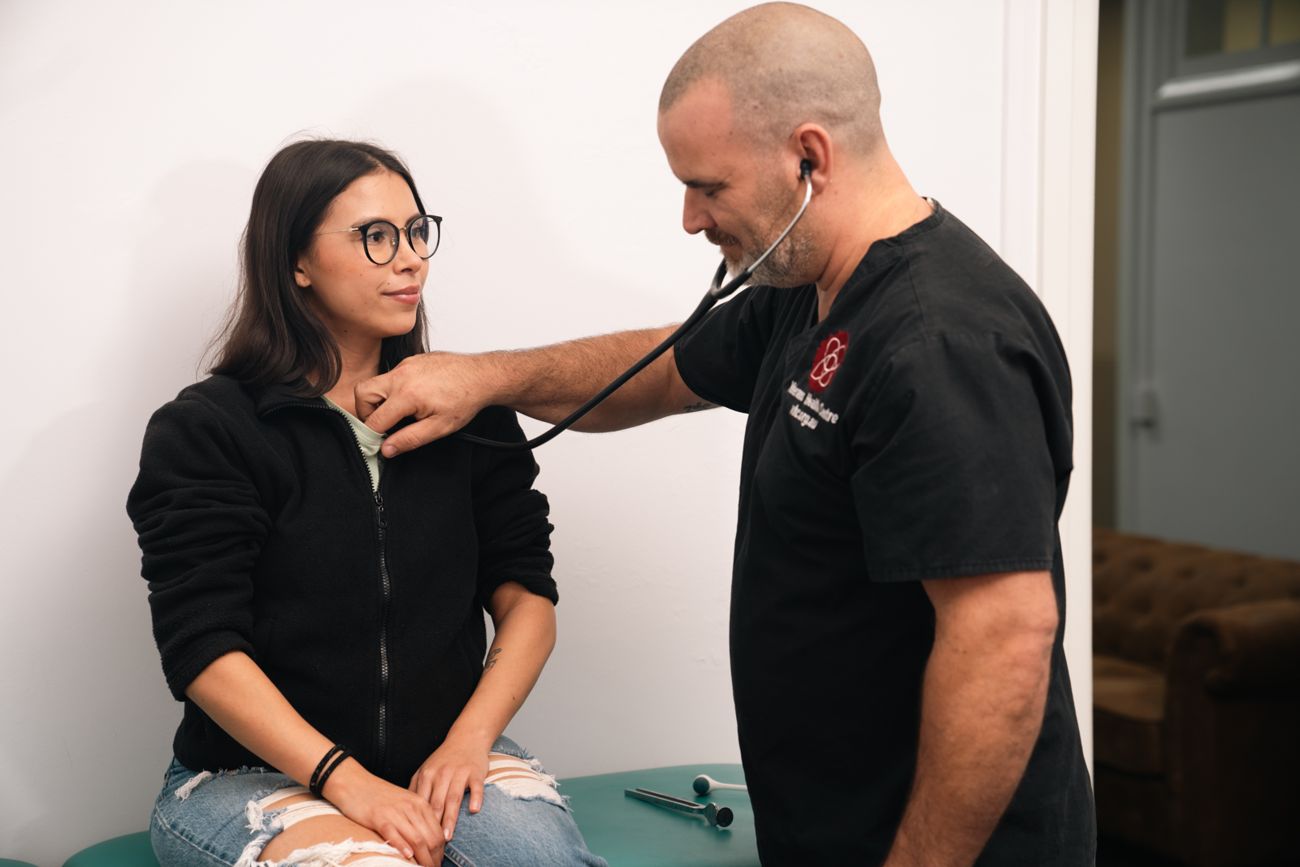
Dr Thomas Perkins is the founding doctor at the Veterans Health Centre in Ipswich, Queensland, and the leading expert in veterans’ medicolegal work in Australia. He has spent over 13 years working exclusively with current and former Australian Defence Force members — treating conditions, writing reports, and navigating the DVA system alongside them.
With 80,000+ DVA claims submitted and over 2,000 Permanent Impairment Assessments completed, Dr Perkins brings a depth of experience that simply cannot be replicated from a textbook. He understands the Statements of Principles, the GARP tables, the imaging that proves what a physical examination alone cannot — and the difference that a properly written report makes at every level, from initial liability through to the VRB.
Every chart review, every diagnostic assessment, and every impairment rating is personally overseen by Dr Perkins. If you’re looking for a doctor who knows veterans medicine inside and out, you’ve found the right clinic.
Contact us0429 146 039 reception@vhc.org.au
Book appointmentUpload evidence that actually decides the claim
We read your whole record, find every documented condition, and write a diagnosis form and diagnostic assessment for each one — ready to attach in MyService. Fixed fee, no percentage of your compensation.